


A WYSIWYG markdown editor for Windows, modeled on WordPad's behaviors, menus, toolbar, and keyboard shortcuts — but with markdown as the native (and only) format. The default surface is a Word-like WYSIWYG editor; a toggle switches to raw-markdown source editing.
Built on .NET / WPF hosting a WebView2 control. The editing surface is
Milkdown (a ProseMirror-based WYSIWYG markdown editor),
so markdown is the literal document model rather than an import/export format:
your text is the file, not a translation of it. A save from the formatted view
keeps the text you didn't change as written, except sometimes near an edit, and a
save with no edits leaves the file exactly as it
was. What an edit does change is style: the blocks you edit are written in
Markdown Midget's own conventions (- bullets, # headings, fenced code, inline
links in place of reference links), listed in
Markdown conventions along with the one case where
emphasis can come back as literal text, and pinned by a round-trip test suite. To
keep a file's own style everywhere, press Ctrl+E before the
formatted view changes anything: the Markdown source view opens on the file as it
is on disk, and a document edited and saved only there is written back as typed.
Once the formatted view has changed the document, the source view shows the
editor's version of it — that is then the only copy of your work.
Builds are on the
Releases page —
grab MarkdownMidget-vX.Y.Z-…-net10.exe from the entry marked Latest. That's
the newest stable release, and it's what the badge above tracks.
A prerelease (-beta or -rc) may sit above it on the page while a feature is being
proven; take that one only if you want what's coming rather than what's settled.
Markdown Midget can also update itself: Help ▸ About Markdown Midget lists the
newest release and any newer prerelease separately, so it's always clear which
you're installing.
It's portable. There is no installer and no Add or Remove Programs entry: the
exe runs from wherever you put it, and deleting it is the uninstall (unless you
registered it — File ▸ Windows Integration ▸ Unregister as .md editor undoes
that, installed copy and shortcuts included). Windows only offers it for .md
files once you run File ▸ Windows Integration ▸ Register as .md editor…
(per-user, no admin prompt), which installs a stable copy under
%LocalAppData%\Programs\MarkdownMidget\ so the Open With entry survives moving
the download — and by default moves your download there rather than copying it;
clear that checkbox to leave the download where it is. Updates come from the app
itself: Help ▸ About Markdown Midget offers an Update button when a newer
version exists, which for a portable exe downloads the new version into the same
folder and starts it, leaving yours behind for you to delete.
Every tagged push builds on GitHub Actions and attaches the exe automatically
(see .github/workflows/release.yml).
- WYSIWYG editing with a one-key toggle to the raw markdown source (Ctrl+E). Saving keeps untouched text as written (see above), YAML front matter included.
- Find & Replace (Ctrl+F, Ctrl+H) in both views and four search modes, the cursor's line and column in the status bar, Go to Line (Ctrl+G), and line numbers in the margin (View ▸ Line Numbers).
- Headings, bold / italic / underline / strikethrough, inline code, bulleted & numbered lists, block quotes, and horizontal rules.
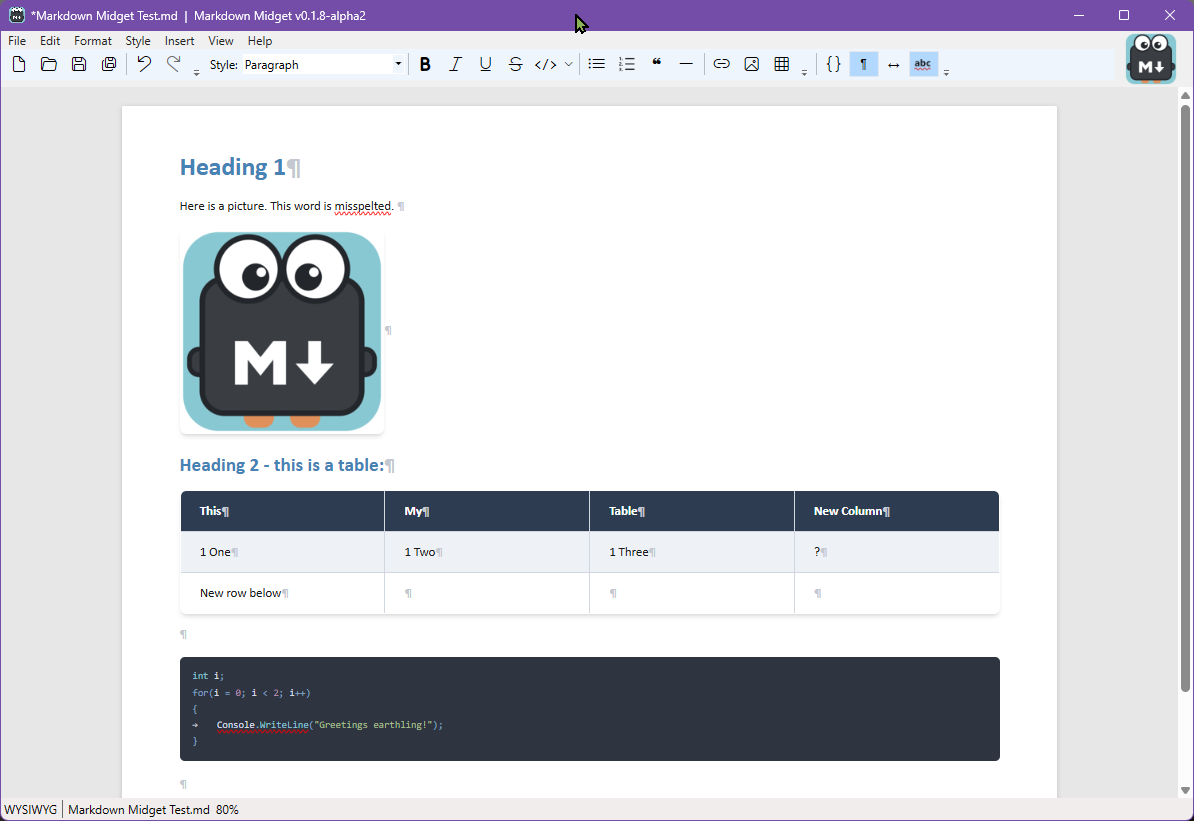
- Tables (GFM) — insert dialog plus a native right-click menu for insert/delete/select column, row, or table; styled with a dark header and alternating rows.
- Pictures embedded as data URIs (travel with the file), with an aspect-locked Resize dialog.
- Links rendered like a browser, with the URL as a hover tooltip; Ctrl+click opens a web link once you confirm, and right-click ▸ Copy Link copies it.
- Fenced code blocks with syntax highlighting (C#, JavaScript, TypeScript, HTML, CSS).
- Formatting marks toggle (¶ / ↵ / → / ·) and spell check (private dictionary, with one-way import from Word's CUSTOM.DIC).
- Themes — eleven built in (Amber Phosphor, Red Sparks and Red Sparks 2X designed by Joe Sparks (@joesparks on X), Dracula, GitHub Dark Dimmed, GitHub Light, Midget Solarized, Obsidiminutive, One Light, Solarized Light, and the original Default), plus your own: drop a CSS file in the themes folder and it appears in the menu. Printing stays light whatever you pick. The app follows Windows light and dark mode (or View ▸ Mode), with a theme for each and dark menus in dark mode.
- Document width (Portrait / Landscape / Full, remembered between sessions) and a zoom indicator (Ctrl + mouse wheel).
- Recent files, drag-and-drop (a dropped picture is inserted, a dropped markdown or text file opens, anything else is refused by name), read-only mode, and a bundled Help document and changelog (Help ▸ What's New, or click the mascot — it flags unread entries with a small gold asterisk).
- A window per document: a file opened while this window has one gets a new window, a file already open elsewhere brings that window forward, and a document over 512 KB opens with line numbers and spell check off, to stay quick.
- Secure Markdown — password-protected encrypted documents (
.mdenc, AES-256-GCM with an Argon2id-derived key) that edit exactly like any other; the decrypted text never touches disk, crash-protection copies included. - A syntax-highlighted source view that follows the theme — or runs a theme of its own (View ▸ Theme ▸ Same Theme for Both Views, off).
- Windows' file dialogs run in a separate process, with a built-in file picker standing by, so a faulty Explorer add-on can't take the editor down; if one crashes, a notice says what it found and saves a log.
- Ships as a single
.exe.
- Windows 10/11 and the Microsoft Edge WebView2 runtime (already present on Windows 11; otherwise a free download from Microsoft).
- The framework-dependent build also needs the .NET Desktop runtime; the self-contained build bundles it. See Distribution.
Stable (1.0.x), in daily use and signed on every release: 1.0.0 is the latest release, and the badge above and the entry marked Latest on the releases page point at it. Windows-only for now; the editor core is web-based, so a cross-platform shell (MAUI/Avalonia) is a realistic future step. 1.0 ships portable-only, with every deliberate limit written down in HELP.md ▸ Known limits; a real installer that registers in Add/Remove Programs is the headline of the release after it, and the portable exe will stay available either way.
MarkdownMidget.slnx
src/MarkdownMidget/         WPF app (net10.0-windows)
  MainWindow.xaml(.cs)      Menu, toolbar, WebView2 host, source toggle, file I/O
  wwwroot/                  Built editor bundle (served to WebView2) — generated
editor-src/                 npm/esbuild project that bundles Milkdown -> wwwroot
  src/main.js               Editor setup + the window.MDM host bridge
  build.mjs                 esbuild bundler
create(initialMarkdown)— mount the editor with a documentgetMarkdown()/setMarkdown(md)— used for file I/O and the source togglecmd(name, …args)— run a formatting command (bold,italic,underline,strike,code,h1..h6,paragraph,bullet,ordered,quote,hr,codeblock(language))insertMarkdown(md)— insert a fragment (used by the link/picture helpers)
The editor posts loaded / ready / change messages back to the WPF host.
Headings Ctrl+1..Ctrl+5 / Ctrl+0 (paragraph) are bound in the editor keymap
so they work while typing in WYSIWYG; the same commands also work in the raw
source view via the WPF shell (SourceFormat.cs).
Fenced code blocks are syntax-highlighted (Prism/refractor) for C#, JavaScript,
TypeScript, HTML, and CSS.
The editor bundle is embedded in the assembly and extracted to
%LocalAppData%\MarkdownMidget\editor at startup, so a self-contained publish is
a single .exe rather than an exe plus a loose wwwroot folder.
Markdown has no underline, so it round-trips as inline HTML <u>…</u>
(editor-src/src/underline.js): a custom Milkdown
mark serializes to <u>, and a remark transform collapses the <u> … </u>
inline-HTML pair back into the mark on load.
The editor bundle is checked in, so the app builds directly:
dotnet run --project src/MarkdownMidgetAfter changing anything under editor-src/, rebuild the bundle:
cd editor-src
npm install      # first time only
npm run build    # writes src/MarkdownMidget/wwwroot/editor.bundle.{js,css}
npm run watch rebuilds on change during development.
To try an installed copy of a local build, publish a single-file build first
(see Distribution) and run
File ▸ Windows Integration ▸ Register as .md editor… from the exe it writes.
Register refuses a plain dotnet build or dotnet run output: that exe needs
the files beside it, and a copy of it on its own would not start.
Every local build of src/MarkdownMidget takes the next number from a counter and
stamps it into the binary, so a copy of MarkdownMidget.exe can be told apart from
the one it replaced:
| Where | Looks like |
|---|---|
| Explorer ▸ Properties ▸ Details ▸ File version | 1.0.0.57 |
| Explorer ▸ Properties ▸ Details ▸ Product version | 1.0.0+build.57 |
| The app, Help ▸ About Markdown Midget | Version 1.0.0+build.57 |
| The app's title bar, after the document name | | Markdown Midget v1.0.0+build.57 |
The build prints it too (MarkdownMidget local build #57 - ...). Check the exe's
Properties before copying it over an installed copy and Help ▸ About Markdown
Midget after launching: if the numbers differ, the copy is not the build you made.
The counter is the repository's, not the checkout's — .git/mm-local-build-number
— so a clone and all its worktrees take numbers from one sequence and no number is
issued twice. Delete that file to start again at 1. A source copy with no .git
falls back to .local-build-number in the checkout (git-ignored) and warns.
Every build takes a number, even when nothing changed, so a fresh publish is always
identifiable; the changed attribute costs a recompile, about a second. CI and release
builds take none (GITHUB_ACTIONS, CI, TF_BUILD, ContinuousIntegrationBuild),
so a released exe reports what the tag said; -p:UseLocalBuildNumber=false does the
same locally. A build that cannot number itself warns — MMBN0001 (no number: the
counter is corrupt, at its ceiling, or locked) or MMBN0003 (no repository found, so
the checkout's counter was used) — and builds anyway. Under -warnaserror demote them
with -p:MSBuildWarningsAsMessages=MMBN0001%3BMMBN0003; the %3B is required,
because MSBuild splits a -p: value on real semicolons (MSB1006). The mechanism is
build/LocalBuildNumber.targets, imported by the app project only.
To measure line coverage, use the Microsoft collector that Microsoft.NET.Test.Sdk
brings in. The report goes under the folder you name; without --results-directory,
it goes under the test project's TestResults folder, which is git-ignored:
dotnet test tests/MarkdownMidget.Tests/MarkdownMidget.Tests.csproj --collect:"Code Coverage;Format=cobertura" --results-directory <folder outside the repo>coverlet's XPlat Code Coverage passes but reports nothing for the app. The
comment in tests/MarkdownMidget.Tests/MarkdownMidget.Tests.csproj says why, and
how to read one file's line rate from the report.
The framework-dependent profile is the standard distributable — a single ~6.5 MB
.exe for machines that have the .NET 10 Desktop runtime (and the Edge
WebView2 runtime, which ships with Windows 11):
dotnet publish src/MarkdownMidget -p:PublishProfile=win-x64-fxdependent
# -> src/MarkdownMidget/bin/Release/publish/framework-dependent/MarkdownMidget.exe
A fully self-contained profile (win-x64, ~63 MB, bundles the .NET runtime so
nothing needs to be installed) also exists for one-off use; it can't be shrunk
because WPF doesn't support trimming. The editor bundle and HELP.md are embedded
in either build. Debug/dotnet run stay framework-dependent and fast.
The mascot (art/midget.svg) is the canonical Markdown M▼ badge with googly
eyes and stubby feet, in the editor's Nord palette. art/ holds rendered PNGs
(16–256 px) and a multi-resolution midget.ico used as the app/taskbar icon
(<ApplicationIcon>), the title-bar icon, and the toolbar mark. Regenerate with
ImageMagick:
cd art
for s in 16 24 32 48 64 128 256; do magick -background none -density 512 midget.svg -resize ${s}x${s} midget-${s}.png; done
magick -background none -density 512 midget.svg -define icon:auto-resize=256,128,64,48,32,24,16 midget.ico| Action | Shortcut |
|---|---|
| New | Ctrl+N |
| Open | Ctrl+O |
| Save | Ctrl+S |
| Save As | Ctrl+Shift+S |
| Bold / Italic / Underline | Ctrl+B / Ctrl+I / Ctrl+U (in the editor) |
| Paragraph / Heading 1–5 | Ctrl+0 / Ctrl+1 … Ctrl+5 |
| Focus style box | Ctrl+Shift+H |
| Insert link | Ctrl+K |
| Exit block (escape a code block) | Ctrl+Enter |
| Toggle source | Ctrl+E |
Per the project rule, anything from WordPad that isn't strictly easy to implement is deferred from this first iteration. Notable deferrals / divergences:
- Ribbon → menu + toolbar. WPF has no trivial Office ribbon, so the MVP uses a classic menu bar + toolbar with the same commands and shortcuts.
- Font size box → paragraph Style dropdown. Markdown styles blocks (Paragraph / Heading 1–5 / code block), not point sizes — the "Styles, not size" divergence.
- Underline → inline HTML. Markdown has no underline; it round-trips as
<u>…</u>(see above). - Toolbar glyphs. Old-school flat icon buttons (Segoe Fluent Icons). The
</>mark is reserved for inline code; the view pair is a page-with-picture button (formatted view) and a##button (markdown source), the current one lit. - Pictures embed as data URIs. Inserting a picture base64-encodes the file
into the markdown (
) so it renders inside the sandboxed WebView and travels with the document. Right-click ▸ Resize… (aspect-locked) stores the size as inline HTML<img width height>. - Links render styled (steelblue, underlined) with the URL shown as a native
hover tooltip (a
title-attribute decoration), like a browser. - Tables (GFM): insert via Insert ▸ Table…; right-click for the minimal structure edits (insert/delete/select column, row, table). Cell selection + Backspace/Delete clears content; typing replaces it. Styled like the Markdown Monster "PDF Output" theme — dark header row, alternating row stripes.
- Modified state is content-based: the document is "unchanged" whenever it matches the last opened/saved markdown, so undoing back to that state clears the modified flag. Opening/new flushes undo history (you can't undo past the open state); saving leaves history intact (you can undo past a save).
- Drag & drop is routed by what the file is, not by what it is called: dropping a picture (PNG, JPEG, GIF, WebP, BMP — recognised by its magic bytes) inserts it at the caret, exactly as Insert ▸ Picture would, leaving the document you have open alone; dropping a markdown or text file opens the file itself, in this window when it has no document and otherwise in a new window (at most 10 per drop); anything else is refused by name in the status bar and changes nothing. Drop pictures and a markdown file together and the pictures win. Files can also be passed on the command line.
- Read-only mode: Edit ▸ Read Only locks the document; also available via the
--readonlycommand-line switch. Help ▸ View Help opens the bundled HELP.md read-only in a new instance. - Printing (Ctrl+P) and PDF export, with header/footer and colour-code-block options, and Find & Replace (Ctrl+F, Ctrl+H, F3) in Normal / Extended / Wildcards / Regex modes, in both views. Replace All is one undo step, and is scoped to the selected text when it spans more than one line.
- Deferred: page setup, text colour. (Theming shipped in 0.7.0.)
The last few releases. See CHANGELOG.md for the full history and ROADMAP.md for what's on deck.
- v1.0.0 — The first stable 1.0 release, rc4 with the prerelease flag dropped. A save from the formatted view keeps the text you didn't change, Find has Replace, the app follows Windows light and dark mode with four new dark themes, and the status bar shows the line and column.
- v1.0.0-rc4 (prerelease) — The fourth 1.0 release candidate. File ▸ Open
now always lists encrypted documents as their own type, Secure Markdown. If
Windows' file dialog crashes, the notice now saves what it found as a log, and
Open the log opens it. Settings and the other dialogs, Help, and the main
window on its first start now open fully on screen, even on a short screen at
high display scaling. "Save your current version as…" now encrypts a file you
name
.mdenc, as Save As does. - v1.0.0-rc3 (prerelease) — The third 1.0 release candidate. Markdown Midget now follows Windows light and dark mode: in dark mode the menus, toolbar, dialogs and title bar turn dark, and the document shows the theme you picked for that mode; View ▸ Mode can keep the app in light or dark mode instead. Obsidiminutive is a new dark theme and dark mode's default. Amber Phosphor, Red Sparks and Red Sparks 2X are new night themes, designed by Joe Sparks (@joesparks on X). Most diagrams now follow a theme's text size, and dark themes print dark headings and links. Formatting marks show in the source view too. Cancel in Windows' file dialog now just closes it, and if that dialog crashes, a notice says what it found. Themes made by other people are in the community-themes folder.
- v1.0.0-rc2 (prerelease) — The second 1.0 release candidate. Updating or
registering now leaves your
.mddefault alone. The update from an older version is still done by that version, so it may reset the default one last time; if it does, a notice offers Make it the default…, which opens Windows Settings, as File ▸ Windows Integration ▸ Make Markdown Midget the default… does. Ctrl+H opens Replace, and Find and Replace start with the text you selected. - v1.0.0-rc1 (prerelease) — The 1.0 release candidate. A save from the formatted view now keeps the text you didn't change as written: the blocks you edit, and sometimes blocks near them, take the app's conventions (see Known limits). The status bar shows the line and column, with Go to Line (Ctrl+G) and line numbers in the margin. Opening a file while this window has a document starts a new window, and Ctrl+click opens a web link after you confirm.
- v1.0.0-beta1 (prerelease) — 1.0, as far as a beta. A save through the formatted view no longer rewrites your markdown's style behind your back: the conventions it does write are pinned by a round-trip suite and listed in Help, and a file's line endings and byte-order mark survive the trip. Find has Replace, in both views and all four modes, one undo step per Replace All. A picture dropped or pasted into either view is embedded instead of opening as text or doing nothing silently. Opening a file already open in another window brings that window forward rather than giving you a second copy that saves over the first. And Help gains a Known limits section — everything the app deliberately doesn't do, in one place.
- v0.10.0 — The source view is syntax-highlighted and follows the theme, or runs its own (View ▸ Theme ▸ Same Theme for Both Views). Alt menu shortcuts now work with a document open.
- v0.9.0 — Secure Markdown: password-protected encrypted documents
(
.mdenc) that edit like any other, with encrypted crash protection and no password recovery, ever. The file-dialog crash is fixed: Windows' dialogs run in a separate process, and a built-in file picker takes over if that process crashes. The toolbar follows the cursor the way Word's does. - v0.8.1 — Tables print like they look. The header row and alternating row shading now survive onto paper in every theme (dark themes print a light row shade so text stays readable); the rest of the page still prints light.
- v0.8.0 — Updates keep your place: the restart carries your document and view mode, stale windows get Help ▸ Apply Update for a one-click switch to a version another window already installed, and the About box shows installed vs running when they differ. Plus Edit ▸ Settings ▸ Import words from Word's custom dictionary (one-way), and a fix for dictionary words vanishing when another window wrote the file.
- v0.7.0 — Themes. Seven built in — Dracula, GitHub Dark Dimmed, GitHub Light, Midget Solarized, One Light, Solarized Light and the original Default — plus your own: drop a CSS file in the themes folder and it appears in the menu, checked before it is used and greyed out with a reason if it can't be. The source view and mermaid diagrams follow the theme; printing stays light whatever you pick. Also: File ▸ New opens a new window, Settings moved to the Edit menu, and Help ▸ What's New (or the mascot) opens the changelog.
- v0.6.4 — Updating with several windows open now says "restart this window" instead of a raw Windows error, and stops before downloading anything it doesn't need.
- v0.6.3 — Unsaved work survives a crash: a copy is kept while a document has unsaved changes and handed back on the next launch, still marked unsaved and still bound to its file. Superseded prereleases no longer clutter the About box. Ships patched dompurify and postcss.
- v0.6.2 — The window remembers where you left it (validated against the monitors that still exist, and correct on mixed-DPI desks); word and character count in the status bar; Edit ▸ Settings… for the Open Recent length and what a session opens with; and File ▸ Open, Open Recent, drag-and-drop and the command line all put the cursor in the document too.
- v0.6.1 — File ▸ New puts the cursor in the document, so the first thing you type doesn't go nowhere.
- v0.6.0 — In-app updates with a real About box: versions, licence and copyright links, stable and prerelease listed separately, and one-click updates that verify the Funcular Labs signature before installing. Plus a round of spelling-menu fixes.
MIT © Funcular Labs.
The bundled editor is built on Milkdown / ProseMirror with syntax highlighting via Prism / refractor, each under their own permissive licenses.